
The practical way to reduce Gemini in Gmail and Docs
Gemini is now integrated into several Google Workspace services, including Gmail and Google Docs. It can draft text, summarise material and locate information across Workspace content that a user is permitted to access. For people who do not want those functions enabled, the important distinction is between Gemini itself, Google’s wider “smart features”, and the separate Gemini app.
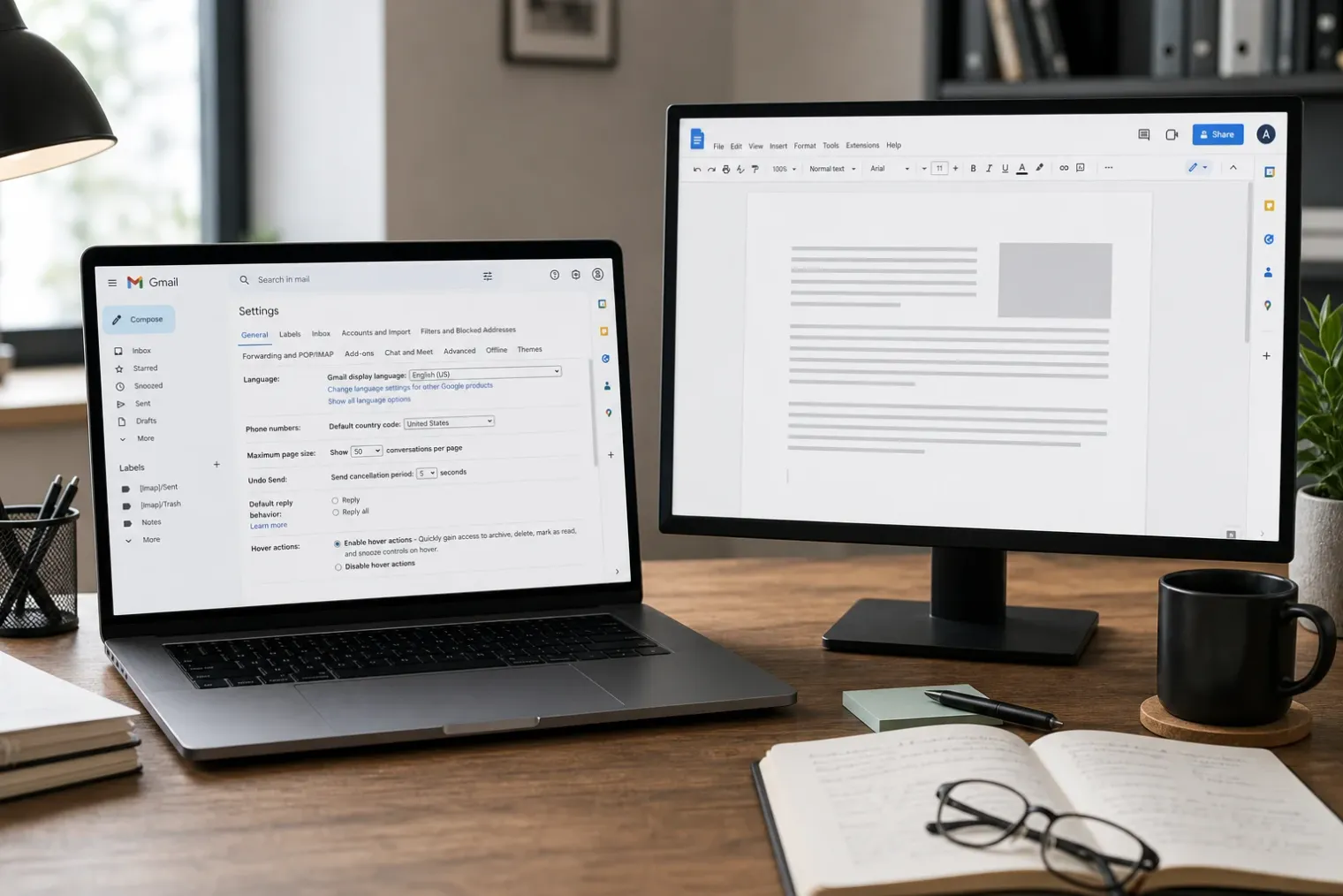
For a personal Google account, the principal control is not normally found in Google Docs. Instead, Google places the account-level Workspace setting in Gmail. Turning it off restricts Gemini-powered experiences that use Workspace data across services, including Gmail and Docs.
On a computer, the route is:
- Open Gmail and select Settings, then See all settings.
- Stay on the General tab and find Google Workspace smart features.
- Select Manage Workspace smart feature settings.
- Turn off Smart features in Google Workspace and save the change.
Google says this setting governs experiences that use data across Workspace products. With it disabled, users lose access to Workspace-wide Gemini functions such as asking Gemini to summarise content, create drafts or find key information. It also switches off AI Overviews in Gmail search and the Gemini side panel in Gmail.
The setting applies to the signed-in account rather than one browser or device, although its appearance and the exact wording of settings can differ between web and mobile interfaces.
Gmail has a separate smart-features setting
A second control, labelled Smart features in Gmail, Chat and Meet, deals with personalisation within those three products. It is also available in Gmail’s General settings. Unticking it stops Gmail, Chat and Meet from using content and activity to provide certain built-in smart features.
That choice has consequences beyond generative AI. Google lists inbox categorisation, Smart Compose, Smart Reply, summary cards, priority-related features and follow-up nudges among the affected Gmail experiences. Some functions can retain their own individual settings, so switching off this broader control is not necessarily a guarantee that every AI-related interface element or suggestion will disappear.
The two settings should therefore not be confused:
- Smart features in Gmail, Chat and Meet controls personalisation and assistance within those applications.
- Smart features in Google Workspace controls features that use Workspace data across products, including Gemini’s Workspace capabilities.
- Smart features in other Google products governs some uses of Workspace data in services outside Workspace, such as selected personalisation experiences in Google products.
For someone whose main concern is Gemini in Gmail and Docs, disabling Smart features in Google Workspace is the central step. Disabling the Gmail, Chat and Meet setting as well is a more sweeping choice that trades off long-standing email conveniences for less in-app personalisation.
Google Docs does not offer the same simple user switch
Google Docs provides Gemini tools to eligible Google Workspace and Google AI plan subscribers. Those tools can help draft, rewrite and summarise documents, but Google’s consumer controls are designed around Workspace smart features rather than a dedicated toggle that removes every Gemini surface from the Docs interface.
As a result, switching off Workspace smart features is best understood as disabling the underlying cross-Workspace Gemini experience, not necessarily as a promise that every button, menu entry or promotional prompt will be removed immediately. A visible Gemini entry point is not by itself evidence that Gemini can still analyse a document or provide a response.
Users enrolled in Google Workspace Experiments may have another consideration. Google describes this as an early-access programme for experimental Workspace capabilities. Its documented opt-out route is to leave the programme permanently, using the opt-out option in Gmail or the relevant Docs, Sheets or Slides menus. That option is relevant only to people who joined the experiments programme; it is not the normal setting for standard Gemini features.
Work and school accounts are different
Employees and students frequently cannot make the final decision themselves. A Google Workspace administrator can limit access to Gemini, prevent Gemini from using some or all Workspace data, or turn services off for particular organisational units or groups.
Administrators also have controls that are separate from the end-user smart-feature options. The Gemini app, which includes the standalone web and mobile Gemini service, can be disabled in the Admin console. That does not automatically govern Gemini features embedded in Gmail, Docs, Drive, Meet or Chat.
For supported Workspace editions, administrators can manage access to Gemini features in individual Workspace services. This offers a more targeted organisational approach than asking every employee to change personal settings. However, switching Gemini off in Docs and Drive does not necessarily prevent a user from asking Gemini in another enabled Workspace service about a file they can access. Organisations concerned with data boundaries should review service settings, user permissions and Gemini’s data-access controls together.
What turning the controls off does not do
Disabling smart features is not the same as deleting past data, cancelling a Google AI subscription or disabling the standalone Gemini app. Those are separate actions with separate settings and, for managed accounts, potentially separate retention rules.
Nor does the setting change ordinary file-sharing permissions. Gemini is intended to work within the user’s existing access rights, so a user should still review who can view, edit, download or copy sensitive Docs and Drive files. For delegated Gmail accounts, Google states that Gemini does not access messages in an inbox delegated to the user.
The most proportionate approach is to start with the Workspace smart-features control, then assess whether the loss of Gmail conveniences makes the separate Gmail, Chat and Meet setting worthwhile. For a work or school account, users should ask their administrator which Gemini controls apply to their organisation before assuming that an individual preference can fully disable the service.


